Scan Documents to PDF – 5 Free Methods for Perfect Digital Copies
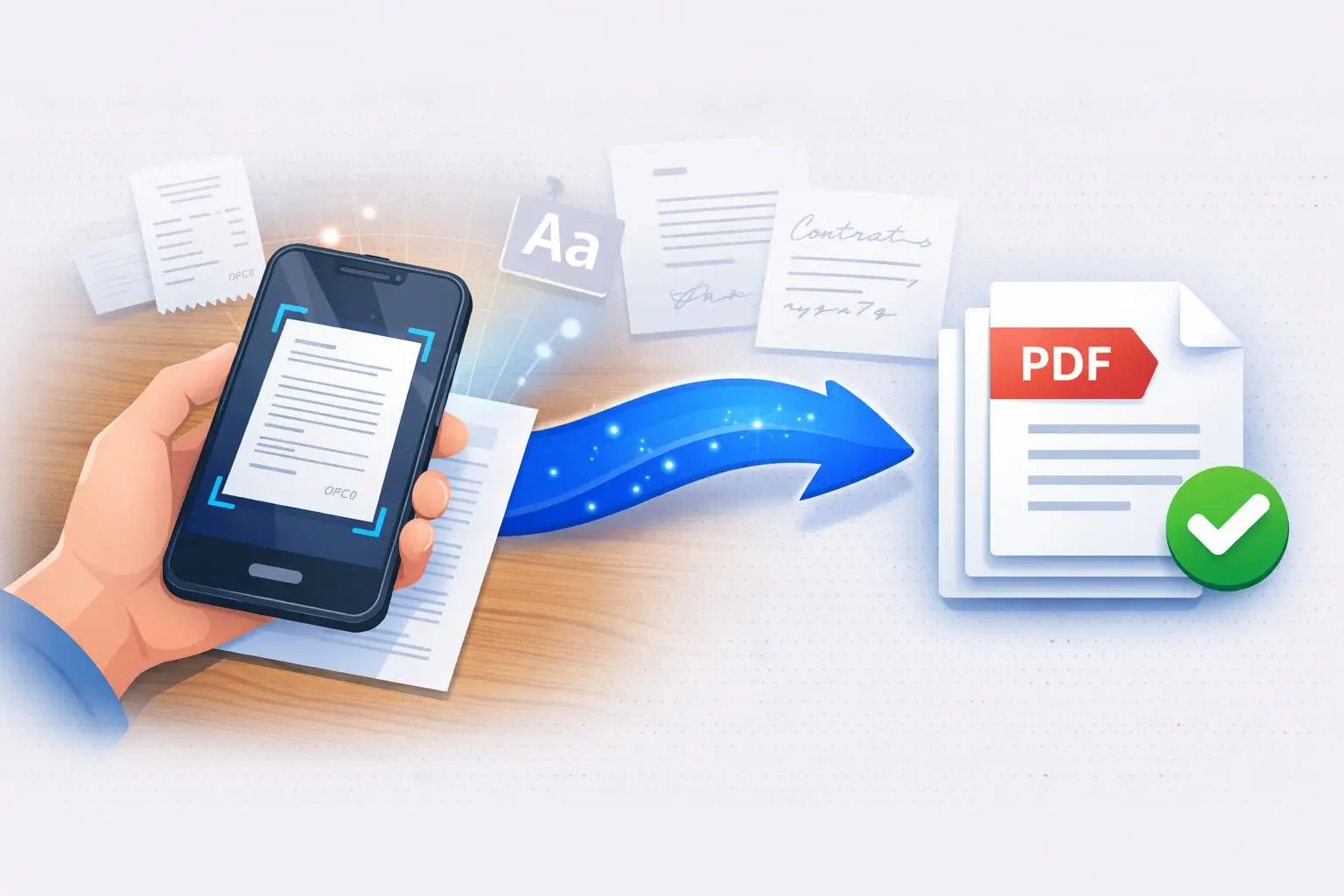
Learning how to scan documents to PDF transforms your smartphone into a powerful portable scanner capable of digitizing receipts, contracts, handwritten notes, and important paperwork within seconds. Whether you need to archive business records, submit official documents electronically, or simply declutter physical files, understanding document scanning techniques ensures crisp, readable results every time. This comprehensive guide covers five proven methods for creating professional scanned PDFs using free mobile apps, built-in device features, and our image to PDF converter for processing existing document photographs into polished digital files.
Document digitization has evolved dramatically from expensive flatbed scanners requiring desktop computers to instant mobile solutions fitting in your pocket. Scanning documents to PDF creates searchable, shareable, and permanently preserved digital copies that eliminate physical storage requirements while enabling instant access from anywhere. According to Statista research, global paper consumption continues declining as businesses and individuals embrace paperless workflows powered by mobile scanning technology.
Modern scanning applications leverage advanced smartphone cameras alongside sophisticated image processing algorithms to deliver results rivaling traditional flatbed scanners. Automatic edge detection identifies document boundaries precisely, perspective correction straightens skewed captures, shadow removal eliminates lighting inconsistencies, and contrast enhancement ensures text remains perfectly readable. These intelligent features transform casual phone photographs into professional-quality document scans suitable for legal submissions, business archives, and official records.
Understanding Document Scanning Technology and OCR Capabilities
Before exploring specific scanning methods, understanding the underlying technology helps you achieve optimal results and select appropriate tools for different document types. Modern document scanning combines multiple sophisticated processes working together seamlessly to transform physical papers into digital PDF files.
Edge detection algorithms analyze captured images to identify document boundaries automatically, distinguishing paper edges from background surfaces regardless of table color or texture. This technology enables scanning documents on any surface—wooden desks, carpeted floors, or busy backgrounds—while extracting only the document itself without manual cropping requirements. Advanced implementations detect multiple documents simultaneously, processing batch captures efficiently for high-volume scanning scenarios.
Optical Character Recognition (OCR) technology converts scanned images containing text into searchable, editable digital content, transforming static photographs into functional documents. According to Adobe's OCR documentation, modern recognition engines achieve over 99% accuracy for printed text in optimal conditions, enabling full-text search capabilities within scanned PDFs. This functionality proves invaluable when searching archived documents for specific information without manually reviewing every page.
Perspective correction algorithms mathematically transform skewed or angled captures into perfectly rectangular documents appearing as though photographed directly from above. This correction compensates for handheld photography angles that would otherwise produce distorted, unprofessional results. Combined with automatic rotation detection ensuring proper document orientation, these processing steps eliminate the precision previously required when positioning documents for scanning.
Method 1 – Using Dedicated Mobile Scanner Apps
Dedicated scanning applications provide the most comprehensive feature sets for regularly scanning documents to PDF, offering specialized tools optimized specifically for document capture rather than general photography. These purpose-built apps deliver consistently superior results compared to standard camera applications or generic file converters.
Adobe Scan, available free for iOS and Android, leverages Adobe's extensive document processing expertise to deliver exceptional scanning quality. The app automatically detects documents within the camera viewfinder, captures at optimal moments, and applies sophisticated enhancement algorithms producing remarkably clean results. Integration with Adobe Document Cloud enables seamless access across devices, while built-in OCR functionality makes scanned text fully searchable. Premium features including PDF export with embedded fonts require subscription, but core scanning capabilities remain completely free.
Microsoft Lens (formerly Office Lens) offers tight integration with Microsoft 365 services, automatically saving scans to OneDrive and enabling direct insertion into Word, PowerPoint, or OneNote documents. The app includes specialized modes for different content types—Document mode optimizes text readability, Whiteboard mode enhances captured meeting notes, and Business Card mode extracts contact information automatically. For users already invested in Microsoft's ecosystem, Lens provides seamless workflow integration unmatched by standalone alternatives.
CamScanner pioneered mobile document scanning and remains popular despite competition from tech giants. The app offers robust free functionality including batch scanning, automatic edge detection, and multiple filter options for different document types. Cloud synchronization enables access across devices, while collaboration features support team document sharing. After scanning, export directly to PDF or convert captured documents using our image to PDF tool for additional customization options including page arrangement and compression settings.
Method 2 – Scanning Documents Using iPhone Built-in Features
Apple integrated document scanning directly into iOS, eliminating third-party app requirements for basic scanning needs. This native functionality works surprisingly well for occasional scanning, though dedicated apps offer more features for frequent users requiring advanced capabilities.
Access the built-in scanner through the Notes app by creating a new note, tapping the camera icon above the keyboard, and selecting "Scan Documents" from the menu. Position your document within the viewfinder, and iOS automatically detects edges and captures when stable. The scanner supports multi-page documents—continue positioning pages until complete, then tap Save to embed scans within your note. iOS document scanning includes automatic perspective correction, color optimization, and contrast enhancement producing professional results without manual adjustment.
The Files app provides another scanning entry point, particularly useful when organizing scans directly into folder structures. Open Files, navigate to your desired save location, tap the three-dot menu, and select "Scan Documents." Captured scans save as PDF files directly within the selected folder, bypassing Notes entirely for streamlined file management. This approach proves especially efficient when scanning directly into cloud storage folders synced with desktop computers.
For documents requiring quality enhancement before conversion, capture photos normally using the Camera app, then process through our photo enhancement tool to improve clarity and contrast. Finally, combine enhanced images into professional PDFs using the image to PDF converter with full control over page sizing, orientation, and compression levels unavailable in basic iOS scanning.
Method 3 – Android Document Scanning Solutions
Android devices offer multiple scanning pathways depending on manufacturer, Android version, and installed applications. Google's integration of scanning features into core services provides universal access regardless of device brand, while manufacturer-specific implementations offer additional capabilities on certain devices.
Google Drive includes built-in document scanning accessible by tapping the plus button and selecting "Scan." The viewfinder automatically detects document edges, capturing when positioning stabilizes. Multiple pages scan sequentially into single PDF files, with options to crop, rotate, or adjust colors before saving. Scanned documents save directly to Drive, immediately accessible across all devices signed into your Google account. This integration makes Drive scanning particularly convenient for users already relying on Google's ecosystem for document storage and collaboration.
Samsung devices include enhanced scanning features within the native camera application and Gallery app. Access scanning through Camera modes or select existing photos in Gallery and choose "Scan document" to apply edge detection and perspective correction retroactively. Samsung's implementation includes additional features like shadow removal and automatic brightness adjustment optimized for their devices' specific camera characteristics.
Google Photos recently added document scanning enhancements, automatically suggesting document crops when detecting papers within photographs. Access these suggestions through the Edit menu after capturing document photos, applying perspective correction and contrast adjustments with single taps. For comprehensive document processing with full customization, transfer photos to our browser-based converter accessible through any Android browser without requiring app installation.
Method 4 – Professional Digitization Using Flatbed Scanners
Traditional flatbed scanners remain relevant for specific use cases where mobile scanning falls short, particularly for archival-quality preservation, oversized documents, and materials requiring consistent lighting impossible to achieve with handheld photography.
Flatbed scanners excel at capturing delicate historical documents, photographs, artwork, and materials that cannot be handled repeatedly for mobile scanning attempts. The controlled lighting environment eliminates shadows and ensures even illumination across entire document surfaces. Resolution options extending beyond smartphone capabilities enable archival-quality digitization suitable for historical preservation or detailed reproduction purposes.
Modern multifunction printers commonly include flatbed scanning capabilities, often sitting unused despite availability. Access scanner functionality through manufacturer software installed on your computer, or use operating system built-in scanning features. Windows includes "Windows Scan" (downloadable from Microsoft Store) providing straightforward scanning with automatic PDF conversion. MacOS integrates scanning into Image Capture application and Preview, offering direct PDF output without additional software requirements.
For organizations processing high document volumes, dedicated document scanners with automatic document feeders dramatically accelerate digitization workflows while maintaining consistent quality across hundreds of pages. These devices range from compact desktop units processing 20-30 pages per minute to enterprise systems handling thousands of documents daily. After scanning, organize multiple document files into cohesive PDFs using our image to PDF tool which supports batch processing with customizable page arrangements.
Method 5 – Converting Existing Photos to Scanned-Quality PDFs
Sometimes you've already captured document photographs without using dedicated scanning features, or received document images requiring conversion to professional PDFs. Our image to PDF converter transforms these existing images into properly formatted document PDFs with results comparable to dedicated scanning applications.
Begin by gathering document photographs requiring conversion. For optimal results, ensure images are reasonably well-lit without extreme shadows or glare obscuring text content. If image quality needs improvement, first process through our photo enhancement tool to boost clarity, adjust contrast, and sharpen text readability before PDF conversion.
Upload images to the converter by dragging files onto the upload area or clicking to browse your device storage. The tool accepts JPG, PNG, and WebP formats, processing mixed collections automatically. Arrange thumbnails by dragging to establish proper page sequence—particularly important for multi-page documents where correct ordering matters for readability and professional presentation.
Configure output settings matching your document requirements: A4 or Letter size for standard documents, custom margins ensuring adequate whitespace, and appropriate compression balancing file size against readability. For archival documents requiring maximum quality preservation, select minimal compression settings. For documents intended for email sharing where file size matters, higher compression significantly reduces PDF size with acceptable quality for screen viewing.
Best Practices for Clear and Readable Document Scans
Achieving consistently excellent scanning results requires attention to lighting conditions, document positioning, and capture techniques that maximize automatic processing algorithm effectiveness. Following established best practices ensures every scan meets professional standards suitable for business, legal, or personal documentation needs.
Lighting represents the single most important factor affecting scan quality. Natural daylight provides ideal illumination for most documents—position near windows during daytime hours when possible. Avoid direct sunlight creating harsh shadows or washed-out areas. Indoor lighting works adequately when evenly distributed, but overhead lights casting shadows from your hands or phone require repositioning. Multiple light sources from different angles minimize shadow problems when outdoor lighting isn't available.
Document placement affects both edge detection accuracy and perspective correction quality. Place documents on contrasting surfaces—dark documents on light backgrounds and vice versa—enabling algorithms to identify edges precisely. Flat surfaces prevent page curling that creates shadows and distortion. For bound documents like books or magazines, press pages firmly flat, understanding that gutter shadows near binding may require post-processing or acceptance of some quality compromise.
Camera positioning directly above documents perpendicular to the surface produces optimal raw captures requiring minimal perspective correction, while angled captures demand more aggressive mathematical transformation potentially introducing subtle quality degradation. Hold your phone parallel to the document surface when possible, though modern algorithms compensate remarkably well for reasonable angles when perpendicular positioning proves impractical. For documents requiring precise formatting, use our image resizing tool to ensure consistent dimensions across multi-page documents before PDF conversion.
Document Types and Their Specific Scanning Requirements
Different document categories present unique scanning challenges requiring adjusted approaches and settings optimization. Understanding these variations ensures appropriate handling for each document type encountered during digitization projects.
Receipts present particular challenges due to thermal paper that fades over time, small fonts requiring high resolution, and often crumpled or folded conditions affecting flatness. Scan receipts promptly before fading occurs—thermal paper can become illegible within months depending on storage conditions. High contrast settings improve readability for faded receipts, while our enhancement tool can boost visibility before conversion when original captures prove difficult to read.
Legal documents including contracts, agreements, and official forms demand highest quality preservation ensuring every word remains clearly legible for potential future reference or legal proceedings. Use maximum resolution settings, minimal compression, and verify every page captures completely without cropping important content. Multi-page legal documents require careful page ordering—verify sequence before finalizing PDFs to prevent embarrassing or problematic pagination errors.
Handwritten notes and historical documents containing unique, irreplaceable content warrant archival-quality scanning approaches. These materials often include subtle details—faded ink, paper texture, marginal annotations—that aggressive image processing might eliminate. Use flatbed scanners when available for irreplaceable originals, capturing at maximum resolution with minimal enhancement allowing post-processing decisions to remain reversible. Store archival scans alongside processed versions optimized for everyday access.
Organizing and Managing Scanned Document Collections
Scanning documents creates value only when resulting files remain findable and accessible. Establishing consistent organizational systems before accumulating thousands of digital documents prevents future frustration when searching for specific items within growing archives.
Filename conventions dramatically impact searchability. Include dates in consistent format (YYYY-MM-DD ensures chronological sorting), document types, and relevant identifiers within filenames. Example: "2025-01-15_Invoice_CompanyName_12345.pdf" immediately communicates document nature without opening. Avoid generic names like "scan001.pdf" that provide zero information about contents requiring individual file inspection to identify.
Folder structures should mirror how you naturally think about documents. Some users organize chronologically by year and month, others by category (financial, legal, personal, medical), and businesses often organize by client, project, or department. Hybrid approaches combining multiple organizational schemes through nested folders provide flexibility for different access patterns. Whatever system you choose, consistent application matters more than perfect theoretical structure.
Cloud storage services including Google Drive, Dropbox, OneDrive, and iCloud provide automatic backup, cross-device synchronization, and search capabilities for finding documents by name or OCR-indexed content. Store important scanned documents in cloud folders rather than device-only locations risking loss through device failure, theft, or damage. For documents containing sensitive information, verify cloud provider security practices and consider additional encryption for highly confidential materials. Generate shareable links for documents using our QR code generator enabling quick access through printed codes.
Frequently Asked Questions
Adobe Scan and Microsoft Lens both offer excellent free scanning with automatic edge detection, perspective correction, and PDF export. For users already using Google services, Google Drive's built-in scanner provides seamless integration. After scanning, our image to PDF converter offers additional customization including page reordering, compression settings, and custom margins unavailable in basic scanning apps.
Open the Notes app, create a new note, tap the camera icon, and select "Scan Documents." Position your document and iOS automatically captures when stable. For multi-page documents, continue scanning additional pages before tapping Save. Alternatively, use the Files app's scan feature by navigating to your desired folder, tapping the three-dot menu, and selecting "Scan Documents" for direct PDF saving.
Yes, most dedicated scanning apps including Adobe Scan and Microsoft Lens include built-in OCR that converts scanned text into searchable content. This allows you to search for specific words within scanned documents rather than manually reviewing every page. OCR accuracy depends on image quality, so ensure good lighting and sharp focus when capturing documents requiring text searchability.
All major scanning apps support multi-page document creation. After capturing the first page, continue positioning and scanning additional pages within the same scanning session. Most apps show page count indicators and allow reordering before export. If you've already scanned pages as separate files, use our image to PDF converter to combine them into a single document with drag-and-drop page arrangement.
Blurry scans typically result from insufficient lighting, camera movement during capture, or incorrect focus. Ensure adequate light falls evenly across documents without harsh shadows. Hold your phone steady—consider resting it against something stable. Tap to focus on the document text before capture. If existing scans appear blurry, process through our photo enhancement tool to improve sharpness and contrast before PDF conversion.
Open Google Drive, tap the plus button, and select "Scan." Position your document and capture when edges highlight automatically. For Samsung devices, use the built-in scanner accessible through Camera modes or Gallery editing options. Third-party apps like Adobe Scan and CamScanner provide additional features including batch scanning and advanced image processing for users requiring more capabilities than built-in options offer.
For text documents intended for screen viewing and basic printing, 200-300 DPI provides excellent readability with reasonable file sizes. Legal or archival documents warrant 300-400 DPI ensuring every detail remains clearly legible. Photographs or documents containing fine details benefit from 400-600 DPI for maximum preservation. Higher resolutions create larger files, so match resolution to actual document requirements rather than always selecting maximum settings.
Yes, both mobile scanning apps and flatbed scanners effectively digitize printed photographs. Use Photo mode rather than Document mode in scanning apps to preserve colors and details rather than optimizing for text contrast. For collections of scanned photos, our image to PDF converter creates beautiful photo album PDFs with customizable layouts including multiple images per page options.
Most scanning apps include quality or compression settings during export—choose "Medium" or "Small" file size options for email-friendly documents. When converting existing scans using our converter tool, select higher compression levels and enable "Optimize for smaller file size" to reduce PDF size by 30-50% while maintaining acceptable screen viewing quality.
Security varies by tool. Some apps upload documents to cloud servers for processing, while others process entirely on-device. For sensitive documents, choose apps with local processing or clearly stated privacy policies. Our browser-based converter processes everything locally within your browser—documents never leave your device, ensuring complete privacy for confidential materials including financial records, medical documents, and legal papers.