How to Convert Images to PDF – 7 Free Methods That Work on Any Device
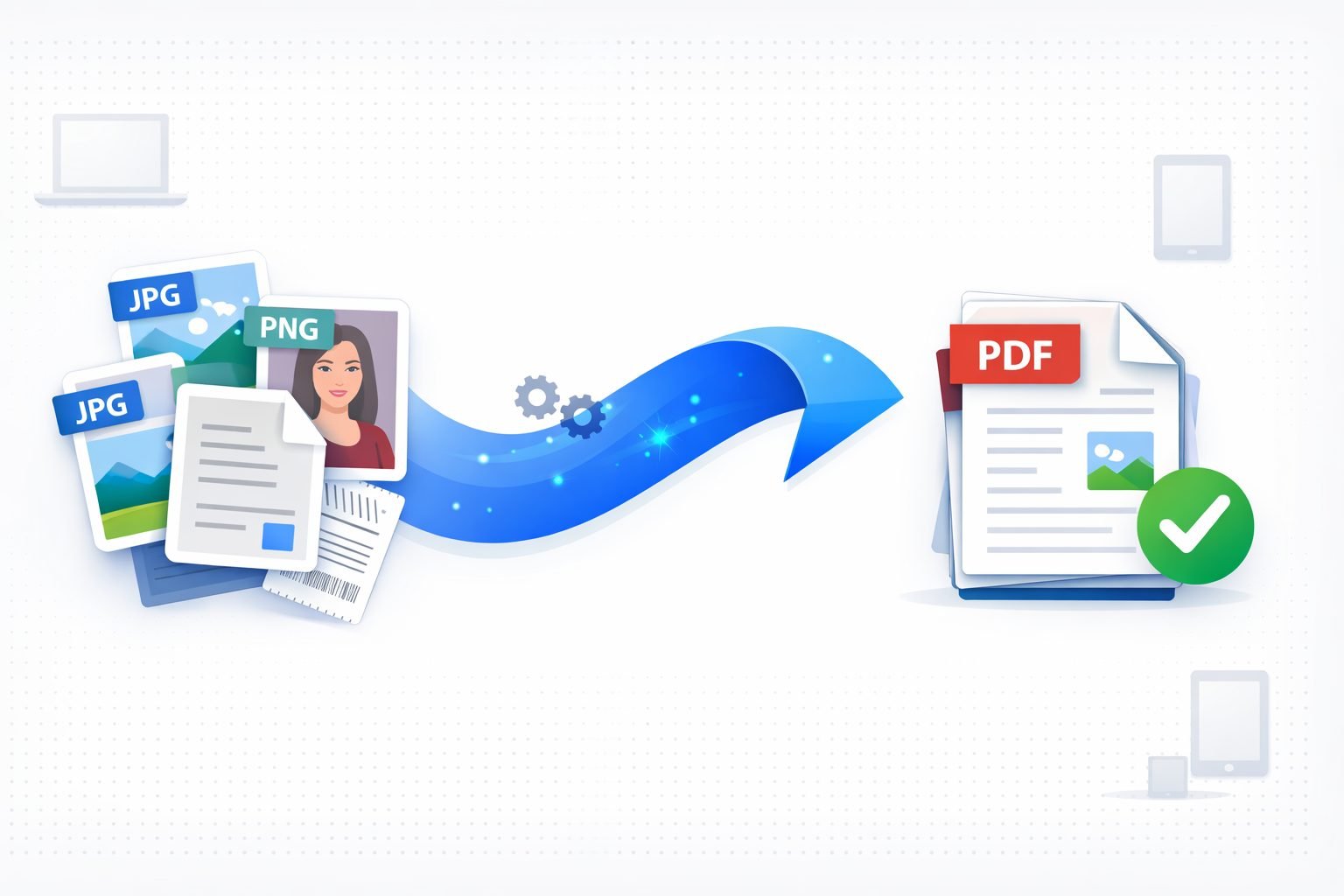
Learning how to convert images to PDF has become an essential digital skill for students, professionals, and everyday users managing documents across multiple platforms. Whether you need to combine vacation photographs into shareable albums, compile scanned receipts for expense reports, or create professional portfolios from design work, understanding image to PDF conversion saves countless hours while producing polished results. This comprehensive guide walks you through seven proven methods for transforming JPG, PNG, and other image formats into professional PDF documents using free tools available on every device—including our powerful image to PDF converter that processes everything directly in your browser without uploading files anywhere.
The portable document format remains the universal standard for document sharing because PDF files display identically across every computer, smartphone, and tablet regardless of operating system or installed software. Converting images to PDF transforms scattered visual files into organized, professional documents that recipients can easily view, print, and archive without compatibility concerns. According to Adobe's official documentation, over 300 billion PDF documents exist globally, demonstrating this format's dominance in digital communication and document management.
Unlike individual image files requiring separate downloads and manual organization, PDF documents combine multiple pictures into cohesive packages with consistent formatting. Recipients don't need specialized software since every modern browser, smartphone, and computer includes built-in PDF viewing capabilities. Additionally, PDF documents support password protection, digital signatures, and annotations—features unavailable for standard image formats like JPG or PNG files.
Why Converting Photos to PDF Matters for Modern Document Management
Before exploring conversion methods, understanding why PDF format dominates professional and personal document sharing helps appreciate its practical importance. The Portable Document Format, developed by Adobe Systems in 1993, solved a critical problem that plagued digital documents for years—files looked different when opened on different computers with different software installations and font configurations.
Professional environments increasingly require PDF submissions for applications, reports, proposals, and official documentation. Academic institutions accept PDF assignments because they prevent formatting changes during submission and grading processes. Legal and business contexts prefer PDF documents for their integrity preservation, tamper-evidence capabilities, and universal accessibility across platforms. Research from Statista indicates that PDF remains the most widely used document format for business communications worldwide.
When you convert multiple images to PDF, you gain several practical advantages that individual picture files cannot provide. Email attachment management becomes simpler since one PDF replaces dozens of separate image files. File organization improves dramatically when related images exist within single documents rather than scattered across folders. Printing becomes more predictable because PDF formatting ensures consistent output regardless of the printer or computer used. Understanding how to make PDF from images quickly becomes essential knowledge for anyone handling digital documents regularly. Try our free browser-based tool to experience these benefits firsthand.
Method 1 – Using Free Online Image to PDF Converter (Recommended)
The fastest and most accessible approach for converting pictures to PDF involves browser-based online tools requiring no software installation, account creation, or payment. Our free image to PDF converter processes files entirely within your web browser, meaning your images never upload to external servers—addressing privacy concerns that plague many online conversion services requiring file uploads to remote systems.
Browser-based converters offer the significant advantage of working identically across Windows, Mac, Linux, Chromebook, and mobile devices without compatibility issues, software requirements, or storage consumption. Simply navigate to the converter tool and drag your image files onto the upload area. The tool accepts JPG, PNG, and WebP formats simultaneously, automatically processing mixed format collections without requiring manual sorting or preprocessing steps.
Once uploaded, thumbnail previews appear allowing you to reorder pages by dragging cards into your preferred sequence for the final document. Before generating your PDF, configure output settings according to your specific needs—page size options include A4 for international standard documents, Letter for North American compatibility, A3 for large format materials, and Auto mode which matches page dimensions to your original image proportions automatically.
Orientation settings let you choose between portrait and landscape layouts affecting how images appear on each page. Margin controls add professional whitespace around your images, while compression settings balance file size against image quality—higher compression creates smaller files suitable for email attachments, while lower compression preserves maximum detail for printing purposes. After configuring settings, click convert and wait briefly while the browser processes your images locally. The completed PDF downloads directly to your device, ready for immediate sharing or archiving.
Method 2 – Converting Images Using Windows Built-in Features
Windows 10 and Windows 11 include native PDF creation capabilities through the "Microsoft Print to PDF" virtual printer, eliminating third-party software requirements for basic conversions. This method works reliably for converting individual images or small batches when you need quick solutions without opening web browsers or installing additional applications. However, for advanced features like drag-and-drop reordering, our dedicated converter tool provides superior functionality.
Start by opening your image in the Windows Photos app or any image viewer installed on your computer. Access the print function through the File menu or by pressing Ctrl+P on your keyboard to open the print dialog. In the printer selection dropdown menu, choose "Microsoft Print to PDF" instead of a physical printer device. Configure page settings including orientation and sizing—select "Fit to page" option to prevent unwanted cropping of your images. Click Print, choose your preferred save location, enter a descriptive filename, and Windows creates a PDF containing your image automatically.
For converting multiple images simultaneously on Windows computers, select all desired files in File Explorer by holding the Ctrl key while clicking each image individually, or use Ctrl+A to select all images in a folder. Right-click the selection and choose "Print" from the context menu that appears. Windows opens the print dialog with all selected images queued for processing. Choose "Microsoft Print to PDF" as the destination printer, adjust settings as needed, and print to create a multi-page PDF document containing all selected images arranged in alphabetical filename order.
This native Windows method offers convenience for occasional conversions but lacks advanced features found in dedicated tools. You cannot reorder images through intuitive drag-and-drop interfaces, adjust compression levels for file size optimization, or configure custom margins for professional formatting. For professional results or frequent conversions involving many images, our online image to PDF converter provides superior control and flexibility compared to built-in operating system features.
Method 3 – How to Convert Photos to PDF on Mac Computers
Apple's macOS operating system includes robust PDF creation capabilities through the Preview application and system-wide print dialog, making conversion straightforward for Mac users without requiring additional software downloads. The Preview app, included free with every Mac computer, handles image viewing and basic PDF operations seamlessly for most common conversion scenarios.
To convert a single image on Mac, open the file in Preview by double-clicking—most images open in Preview by default unless you've changed file associations. Navigate to the File menu and select "Export as PDF" to save a PDF version of your image immediately. Choose your destination folder, enter a descriptive filename, and click Save. Preview creates a properly formatted PDF document containing your image with standard page dimensions matching the original proportions.
For combining multiple images into one PDF on Mac, open all desired images in Preview simultaneously by selecting them in Finder and pressing Command+O together. With multiple images open in Preview, select View menu followed by Thumbnails option to display the sidebar showing all open images as visual previews. Arrange thumbnails by dragging them into your preferred order for the final document sequence. Then choose File menu followed by Print option, select "Save as PDF" from the PDF dropdown button in the lower-left corner of the print dialog, name your file appropriately, and save to your chosen location.
According to Apple Support documentation, Preview supports extensive PDF manipulation capabilities including merging existing documents, adding text annotations, filling interactive forms, and applying digital signatures. However, for batch processing large image collections or accessing advanced compression controls optimizing file sizes, our web-based converter provides more efficient workflows than Preview's somewhat manual approach requiring individual file handling.
Method 4 – Converting Images to PDF on iPhone and Android Devices
Mobile devices offer multiple approaches for converting photos to PDF documents, essential knowledge as smartphones increasingly serve as primary computing devices for many users worldwide. Both iOS and Android platforms include native capabilities alongside app-based solutions providing flexible conversion workflows suitable for different situations and requirements.
On iPhone and iPad devices, the Files app provides built-in PDF creation through a clever print function workaround. Open your image in the Photos app, tap the Share button appearing as a square with upward arrow, and select Print from the sharing options. On the print preview screen, use a two-finger pinch-out gesture directly on the preview image—this action converts the print preview into a PDF document instantly. The share sheet appears again, allowing you to save the PDF to Files app, send via email, or share through messaging apps directly. This gesture-based method works throughout iOS whenever print previews appear, making it useful beyond just image conversion scenarios.
Android devices offer similar functionality through the Google Photos app and various manufacturer-specific gallery applications. Open your image in Google Photos or your default gallery app, access print options through the menu or share button, select "Save as PDF" as the printer destination instead of a physical printer, configure page settings according to your preferences, and save your PDF document to device storage. Samsung devices include native PDF creation directly in the Gallery app's sharing options menu, while Google's native PDF printer functionality works across all Android devices running recent operating system versions.
For converting multiple mobile photos into single PDF documents with advanced controls including reordering, compression adjustment, and custom margins, accessing our browser-based converter through your mobile browser provides full functionality without requiring app installation or consuming device storage space. The responsive design works perfectly on smartphone screens of all sizes, allowing intuitive drag-and-drop reordering, compression adjustments through simple sliders, and instant downloads directly to your device. Before converting, consider using our photo enhancement tool to improve image clarity if your source photos need quality improvement before inclusion in professional documents.
Method 5 – Using Google Drive for Cloud-Based Conversion
Google Drive provides another convenient approach for converting images to PDF, particularly useful when images already exist in cloud storage or when you need documents accessible across multiple devices simultaneously. This method works through any web browser and integrates seamlessly with existing Google Workspace workflows many professionals already use daily.
Upload your images to Google Drive if they're not already stored there by dragging files onto the Drive interface or using the New button to select files from your computer. Once uploaded, right-click on an image file and select "Open with" followed by "Google Docs" from the submenu. Google Docs opens a new document with your image embedded automatically. From the File menu, select "Download" and choose "PDF Document" as the output format. Google converts the document containing your image into a downloadable PDF file.
This method works effectively for individual images or small collections but becomes cumbersome for larger batches requiring multiple manual steps repeated for each image. Additionally, image quality may degrade slightly during the Google Docs embedding process depending on original file dimensions and compression settings. For bulk conversions or situations requiring precise quality control, our dedicated converter tool remains more efficient, handling unlimited images with consistent quality preservation.
Method 6 – Professional Software Solutions for Advanced Requirements
Professional image editing applications like Adobe Photoshop, GIMP, and Affinity Photo include PDF export capabilities offering maximum control over output quality, color profiles, and compression algorithms. While more complex than simpler methods described previously, software-based conversion provides precise control essential for professional printing, archival purposes, or specialized publishing requirements.
In Adobe Photoshop, open your image and choose File menu followed by Save As or Export option. Select PDF as the output format and configure the comprehensive options dialog that appears. Photoshop offers PDF presets optimized for different purposes: "High Quality Print" preserves maximum detail suitable for commercial printing, "Smallest File Size" applies aggressive compression for email distribution, while "Press Quality" meets professional printing industry standards. You can also create multi-page PDFs through Photoshop's PDF Presentation feature located under File menu then Automate submenu, which combines multiple images into single slideshow-style PDF documents.
GIMP, the free open-source alternative to commercial software, exports PDFs through File menu followed by Export As with PDF selected as the format option. Configure resolution, compression algorithm, and page setup options in the export dialog according to your requirements. For batch operations processing entire folders automatically, GIMP's scripting capabilities enable automated conversion workflows—though implementing these requires technical knowledge beyond basic user skill levels. For simpler batch processing without scripting knowledge, use our online converter which handles multiple files effortlessly.
Method 7 – Using Mobile Scanner Apps for Document Capture
Mobile scanner applications like Adobe Scan, Microsoft Lens, and CamScanner provide specialized functionality for capturing physical documents and converting them directly to PDF format. These apps use smartphone cameras to photograph documents while applying automatic perspective correction, edge detection, and enhancement algorithms producing clean, readable results superior to standard camera photographs.
Scanner apps prove particularly valuable when digitizing paper documents, receipts, business cards, whiteboards, or handwritten notes. The automatic processing corrects skewed angles, removes shadows, adjusts contrast for text readability, and crops to document boundaries without manual editing requirements. Most scanner apps allow capturing multiple pages into single PDF documents, making them ideal for multi-page document digitization projects.
After scanning, these apps typically offer immediate PDF export with options for sharing via email, cloud storage services, or direct device download. Some premium features may require subscriptions, but basic scanning and PDF conversion functionality remains free in most popular applications. For straightforward image-to-PDF conversion without scanning functionality, our dedicated converter tool provides simpler workflows for existing digital images already stored on your devices.
Best Practices for Creating High-Quality PDF Documents from Images
Achieving optimal results when converting pictures to PDF requires attention to source image quality, appropriate settings selection, and understanding output requirements for your specific use case. Following established best practices ensures your converted PDFs meet professional standards while maintaining reasonable file sizes for practical sharing and storage.
Source image resolution directly determines PDF output quality, particularly for documents intended for printing rather than screen viewing only. Print-quality PDFs require images at minimum 300 DPI (dots per inch), while screen-viewing PDFs remain acceptably sharp at 72-150 DPI. Before conversion, verify your source images meet resolution requirements—low-resolution smartphone screenshots may appear acceptable on screens but print poorly with visible pixelation. Use our image resizing tool to check and adjust dimensions appropriately before beginning conversion processes.
Consistent orientation throughout your document improves viewing experience significantly for recipients. Rotate sideways images before conversion rather than expecting viewers to rotate their screens or printed pages during viewing. Most converter tools including our image to PDF tool include easy one-click rotation buttons for each uploaded image. Taking a few extra seconds to correct orientation prevents frustration for document recipients while demonstrating attention to professional presentation standards.
File size management balances quality preservation against practical distribution constraints affecting shareability. Email attachments typically face 25MB limits imposed by most email providers, while some corporate systems restrict attachments further. For documents intended for email sharing, select medium-to-high compression settings reducing file sizes substantially with minimal visible quality degradation for screen viewing. Archival or print-intended documents warrant lower compression preserving maximum detail for future use. Consider using our image format converter to optimize images before PDF creation when working with large files or numerous images.
Troubleshooting Common Image to PDF Conversion Problems
Even straightforward conversion processes occasionally encounter problems requiring troubleshooting for successful completion. Understanding common issues and their solutions saves frustration while ensuring successful outcomes when you convert images to PDF for important documents with deadlines.
Large file sizes frequently concern users after conversion, particularly when combining many high-resolution images into single documents. If your PDF exceeds practical size limits for sharing or storage, increase compression settings and reconvert the images using our converter tool which offers multiple compression levels. Reducing source image dimensions before conversion also helps significantly—photos directly from modern smartphone cameras often exceed 12-48 megapixels, far more resolution than necessary for typical viewing purposes on screens or standard printing.
Image orientation problems occur when source files contain incorrect EXIF rotation metadata—the image appears correct on your device but rotates unexpectedly during conversion processes. This commonly affects photos transferred from smartphones to computers or downloaded from cloud services. Use rotation controls within your chosen converter tool to correct orientation before generating final PDF documents. Our converter includes convenient rotation buttons for each image. If problems persist across multiple images, open problematic files in an image editor, manually rotate to correct orientation, save the corrected versions, then attempt conversion again.
Browser memory limitations may affect conversions involving extremely large image collections or very high-resolution files processed simultaneously. If your browser becomes unresponsive or crashes during conversion, try processing images in smaller batches of 20-30 files rather than attempting hundreds simultaneously. Closing other browser tabs and applications frees memory resources for the conversion process. For consistently large batches exceeding browser capabilities, simply process your images in multiple sequential batches using our reliable browser-based converter.
Frequently Asked Questions
Use our free browser-based image to PDF converter by dragging multiple images onto the upload area. The tool accepts JPG, PNG, and WebP files simultaneously without format restrictions. Arrange images by dragging thumbnails into your preferred sequence, configure page size and orientation settings according to your needs, then click convert. The multi-page PDF downloads instantly to your device without requiring software installation, account creation, or payment.
The easiest method involves accessing our browser-based converter through your mobile browser—it works identically on both iPhone and Android devices without requiring app downloads or storage consumption. Alternatively, iPhone users can pinch-out on print previews to create PDFs instantly, while Android users can select "Save as PDF" in print options from gallery apps for simpler single-image conversions.
Yes, our image to PDF converter allows you to select minimal compression or set the quality slider to maximum (100%) to preserve complete original image quality within the PDF document without any visible degradation. However, PDF files with minimal compression will be significantly larger in total file size—appropriate for archival purposes or professional printing but potentially problematic for email sharing with attachment size limits.
Select all images in File Explorer by holding Ctrl while clicking each file individually, or use Ctrl+A for selecting all files within a folder. Right-click the selection and choose Print from the context menu. In the printer dropdown, select Microsoft Print to PDF as your destination. Adjust settings for page size and orientation as needed, then click Print and choose your save location. Windows creates a multi-page PDF with images arranged alphabetically by filename. For more control over ordering, use our online converter with drag-and-drop reordering.
Large PDF sizes typically result from high-resolution source images combined with minimal or no compression settings during conversion. Modern smartphone cameras produce 12-48 megapixel images far exceeding typical viewing requirements. Reduce file sizes by using our converter tool with higher compression level settings, reducing source image dimensions before conversion using resize tools, or enabling the file size optimization options available in the settings panel.
Safety depends entirely on which tool you choose for conversion. Many online converters upload your files to remote servers for processing, creating privacy risks for sensitive or personal images. Our image to PDF converter processes absolutely everything locally within your web browser using client-side technology—your images never leave your device during any part of the processing operation, ensuring complete privacy and security for confidential documents.
In our online converter, simply drag image thumbnails into your desired sequence after uploading all files. The numbered position badges update automatically in real-time showing new arrangement. You can also use automatic sorting features to arrange images alphabetically by filename when that ordering makes sense. Note that Windows and Mac built-in tools don't offer drag-and-drop reordering—images arrange alphabetically only, so rename files with numerical prefixes before conversion if specific ordering matters.
Most PDF converters including ours currently require converting HEIC format images to JPG or PNG first since HEIC isn't universally supported across all conversion tools yet. Use our image format converter to quickly transform HEIC files to widely compatible JPG or PNG formats before proceeding with PDF creation. Alternatively, change your iPhone camera settings to capture in "Most Compatible" format (standard JPG) instead of "High Efficiency" (HEIC) for future photos.
Our image to PDF tool offers multiple options: Choose A4 size for international standard documents suitable for most printers worldwide. Select Letter size for North American printing compatibility and business documents. Use A3 for large format documents like posters or architectural plans. Select Auto mode when preserving original image proportions matters more than standard page sizes—each page automatically matches its source image dimensions exactly.
Our browser-based converter typically handles 50-100+ images simultaneously depending on individual image file sizes and your device's memory capabilities. For extremely large collections exceeding browser memory limits, process images in smaller batches of 30-50 files at a time for reliable operation. Most practical use cases—photo albums, document compilations, portfolios—fall well within our tool's capacities without encountering issues.