Best Free Photo Enhancer Online in 2025 – Top 7 Tools Compared
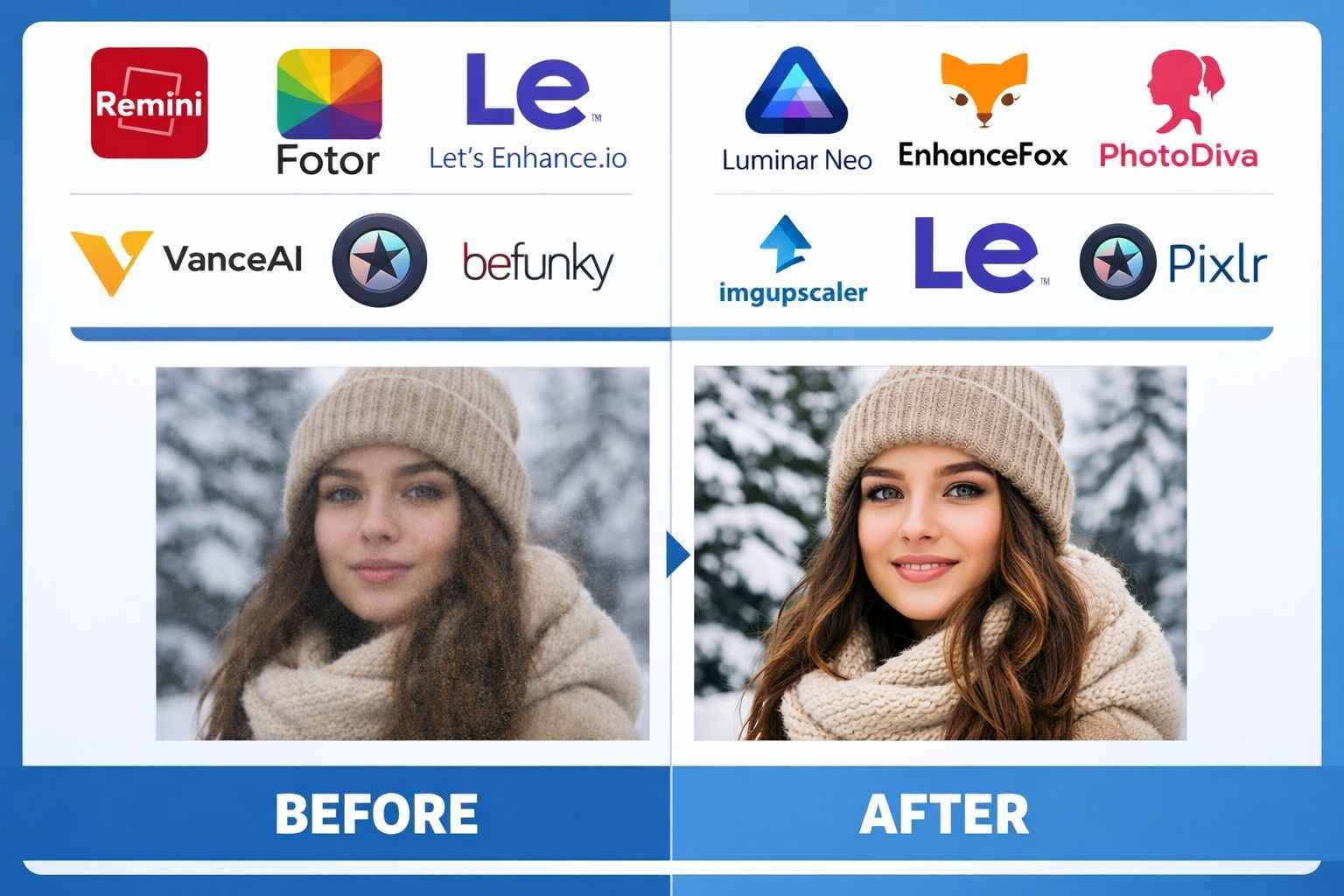
Looking for the best free photo enhancer online to fix dull or low quality images? You have many options but not all tools deliver real results. Some add ugly watermarks to your photos. Others require paid accounts for basic features. A few even upload your private images to unknown servers. This guide cuts through the noise and shows you which free tools actually work well.
A good photo enhancer improves brightness, contrast, sharpness and colors. It makes dark photos brighter and flat images pop with life. The best tools do this without making photos look fake or over processed. They work fast in your browser and protect your privacy too. We tested dozens of options to find the ones worth your time and trust.
According to Statista global digital data, over 4.5 billion people share photos online every day. Most use phone cameras that produce decent but not great shots. Quick enhancement makes these images look much better for social media or printing. The right tool turns average snapshots into photos you feel proud to share with others.
What Makes a Photo Enhancer Actually Good
Before diving into specific tools, let us define what matters most. Not all enhancers work the same way or produce equal results. Some excel at fixing dark photos while others focus on sharpness. Knowing what to look for helps you pick the right tool for your needs. These factors separate great tools from mediocre ones.
Quality results without obvious processing artifacts matter most. Good enhancement looks natural rather than fake or plastic. Colors should appear vibrant but still realistic. Skin tones must not turn orange or waxy. Edges should look sharp without glowing halos around them. The goal is better photos that still look like real photos.
Speed and ease of use rank high for busy people. Nobody wants to learn complex software just to brighten a few images. The best tools work in seconds with simple controls anyone can understand. Upload your photo, adjust a few sliders, and download the result. That simple workflow respects your time and gets things done fast.
Privacy protection has become essential in our data hungry world. Free tools often make money by collecting and selling user data. Some store your photos on their servers forever without telling you. Browser based tools that process images locally keep your photos private. Your images never leave your device during the enhancement process.
No watermarks on output images seems obvious but many free tools fail here. They add their logo to your enhanced photos as forced advertising. This ruins images for professional use or social media sharing. Truly free tools let you download clean images without any marks or branding added to them.
Our Top Pick for Free Photo Enhancement
After testing many options, one tool stands above the rest for most users. Our AI photo enhancer combines powerful features with true ease of use. It works entirely in your browser with no software to install. Your photos stay private since nothing uploads to outside servers. And yes, it is completely free with no watermarks ever.
The auto enhance feature analyzes your photo and fixes multiple issues at once. It adjusts brightness, contrast, saturation, sharpness and clarity together. One click gives you a balanced improvement that looks natural. Most photos look noticeably better with just this single button. No technical knowledge or editing skills needed at all.
Manual controls let you fine tune results when auto mode needs help. Five separate sliders handle brightness, contrast, saturation, sharpness and clarity. Move each one to see changes in real time on your image. This gives you full creative control without overwhelming complexity. Finding the right balance takes just seconds of experimentation.
The before and after comparison feature shows exactly what changed. Slide between original and enhanced versions to see the difference clearly. This helps you decide if the edits achieve what you wanted. You can also spot any problems before downloading the final result. No surprises when you open the saved file later.
Mobile users get the same full experience as desktop users. The responsive design works great on phones and tablets too. Touch controls feel natural for slider adjustments on small screens. Enhance photos from your camera roll anywhere with just a browser. No app download needed that eats up your storage space.
Other Free Photo Enhancers Worth Trying
While we have our favorite, other tools serve specific needs well too. Some excel in areas where our tool takes a different approach. Knowing alternatives helps when you face unusual editing challenges. Here are six other free options that deliver decent results for most users.
Fotor offers a full featured editor with enhancement tools built in. The platform includes filters, text, stickers and more beyond basic fixes. Enhancement results look good for casual social media use. The free version adds small watermarks but they are not too obtrusive. Fotor works well when you need quick edits plus creative additions.
Pixlr provides Photoshop style editing in a browser based package. The learning curve is steeper but power users appreciate the depth. Enhancement happens through manual adjustment of many separate controls. Results can be excellent with skill but beginners may feel overwhelmed. Best for users who want serious editing without software costs.
Canva includes basic enhancement as part of its design platform. Photo fixes work fine for images destined for Canva designs anyway. The tool keeps things very simple with limited adjustment options. Quality is decent but not exceptional compared to dedicated enhancers. Best when you are already using Canva for other design work.
BeFunky balances ease of use with solid enhancement capabilities. The interface feels friendly and results look natural most of the time. Some advanced features require their paid subscription plan. Free users get enough tools for basic brightness and color fixes. A good middle ground between simple and complex options.
PhotoPea recreates Photoshop in your browser completely free. Enhancement requires knowing which tools to use and how to combine them. This gives maximum control but demands significant learning investment. Great for serious hobbyists and professionals needing advanced capabilities. Overkill for users who just want quick fixes to casual photos.
LunaPic has been around forever and still works for basic needs. The interface looks dated but functionality remains solid underneath. Enhancement options are simple but effective for typical problems. No account required and no watermarks on downloaded images. A reliable fallback when other tools have issues loading.
Key Features to Compare Between Tools
Knowing which features matter helps you evaluate any enhancer quickly. Not all tools advertise their limits clearly up front. This checklist reveals what separates truly useful tools from disappointing ones. Use it when testing new options beyond those we covered already here.
Auto enhancement quality varies dramatically between different tools. Some analyze photos smartly and apply balanced corrections automatically. Others just boost everything equally which often looks terrible. Test auto mode on a few different photo types to see how it handles variety. Good auto enhancement should improve most photos without creating new problems.
Manual control depth determines how much you can fine tune results. Basic tools offer just brightness and contrast at most. Better options add saturation, sharpness, clarity and sometimes more. The ability to adjust each factor separately creates better final results. But too many controls can overwhelm users who want simple fixes fast.
Processing location affects both speed and privacy significantly. Cloud based tools upload your photos to remote servers for processing. This can be slow on poor internet and raises privacy concerns. Browser based tools process everything locally on your device instead. Look for tools that clearly state they work without server uploads.
Output quality settings matter for professional or print use cases. Some free tools compress images heavily when saving the result. This throws away detail you worked hard to enhance in the first place. Better tools save at high quality or let you choose compression level. Check file sizes before and after to spot aggressive compression quickly.
Format support determines which image types the tool can handle. Most work with common JPG and PNG files just fine. Some also accept newer WEBP format or older formats like BMP. Our image format converter helps when you need to change formats before or after enhancement work.
How AI Changes Photo Enhancement Today
Artificial intelligence has transformed what free tools can accomplish now. Old enhancers used simple math to adjust brightness and contrast values. Modern AI tools understand image content and enhance it intelligently. This produces much better results with far less effort from users. The technology keeps improving rapidly too.
AI analyzes each photo to determine what fixes it actually needs. Dark photos get brightness boosts while bright ones get contrast instead. Portraits receive different treatment than landscapes or product shots. This smart approach beats one size fits all adjustments that older tools used. Your photos get corrections tailored to their specific problems.
Machine learning trained on millions of photos knows what looks good. The AI learned from professional edits and high quality images over time. It applies similar improvements to your photos automatically now. Results often match what skilled human editors would create manually. Yet the process takes just seconds instead of minutes of careful work.
According to Google's web development research, AI enhanced images perform better on websites and social platforms. They load faster due to smart optimization and look better to viewers. Higher engagement follows from better looking visual content naturally. Free AI tools now give everyone access to these professional advantages.
Future AI tools will offer even more impressive capabilities soon. Features like object removal, background replacement and style transfer keep improving. Some tools already generate entirely new image elements that never existed. Enhancement represents just the starting point for AI image editing power. Expect free tools to gain these advanced features over time too.
Privacy and Security with Online Photo Tools
Free tools must make money somehow and your data often pays the price. Understanding privacy risks helps you choose tools that respect your images. Not all free enhancers handle your photos responsibly or safely. This section explains what to watch for and why it matters today.
Server based processing means your photos leave your device entirely. They travel across the internet to computers you do not control. Those servers may store copies of your images temporarily or permanently. Company employees could potentially access your personal photos too. Data breaches happen regularly and could expose your private images publicly.
Privacy policies reveal how companies treat your uploaded images legally. Many claim rights to use uploaded photos for training AI models. Some share data with advertising partners and third party services. Few people actually read these long legal documents before using tools. But the rights you sign away can be surprisingly extensive and permanent.
Browser based tools like our photo enhancer avoid these risks completely. All processing happens right on your device using JavaScript code. Your photos never travel anywhere over the internet at all. No server stores copies of your private images ever. This approach provides maximum privacy by design rather than promise.
Sensitive photos deserve extra caution with any online tool. Family photos, personal documents and private moments require protection. Professional images with client confidentiality should stay offline too. When privacy matters most, choose tools that process everything locally. The convenience of server tools is not worth the privacy trade off.
Checking tool architecture is easy if you know what to look for. Browser tools work instantly even without internet after the page loads. Server tools show loading indicators while your image uploads and processes. Network activity monitors in your browser reveal exactly what data leaves your device. Trust tools that prove their privacy claims through transparent operation.
Getting the Best Results from Any Enhancer
Even great tools produce bad results with wrong technique or poor source images. Following best practices ensures you get maximum improvement every time. These tips work with any enhancement tool you choose to use. Small changes in approach make big differences in final quality output.
Start with the highest quality source image you have available. Enhancement cannot create detail that never existed in your original file. Tiny thumbnails or heavily compressed images have very limited potential. When possible, use the original full resolution file from your camera or phone. Better input always produces better output from any enhancement tool.
Try auto enhancement first before reaching for manual controls immediately. Modern auto modes handle most common problems quite well on their own. You save time and often get better balanced results this way. Only switch to manual adjustments when auto mode misses something important. Let the AI do heavy lifting before adding your own tweaks on top.
Make small adjustments rather than extreme slider movements at once. Pushing brightness or contrast to maximum rarely looks good on any image. Subtle changes of 10 to 20 percent often improve photos more naturally. You can always add more if needed but removing over processing is harder. Build up improvements gradually for more natural looking final results.
Check results at full zoom size before saving your enhanced image file. Thumbnails hide problems that become obvious when images display larger. Zoom to 100 percent and scroll around checking all areas of your photo. Look for halos around edges, noise in smooth areas and color shifts. Fix issues now rather than discovering them after sharing or printing.
Save enhanced images in appropriate formats for your intended use case. PNG preserves quality perfectly but creates larger files than JPEG format. High quality JPEG at 85 percent or above works great for most sharing needs. Our format converter tool helps when you need different output formats later. Match format choice to how you plan to use the final image.
Common Photo Problems and How to Fix Them
Different photos have different issues that need specific solutions applied. Knowing which controls fix which problems speeds up your editing workflow. This troubleshooting guide covers the most common issues people encounter regularly. Match your photo problem to the right fix for faster better results.
Dark or underexposed photos need brightness increase as the primary fix. Raise brightness until you can see detail in shadow areas clearly. Add a small contrast boost to prevent the washed out look that brightness can cause. Slight saturation increase helps since dark photos often look desaturated too. This combination brings life back to photos taken in dim lighting conditions.
Flat looking images without visual punch benefit from contrast enhancement. Increasing contrast makes dark areas darker and light areas lighter together. This adds depth and dimension that flat lighting fails to capture naturally. Be careful not to lose detail in very bright or very dark areas though. Moderate contrast adjustments around 15 to 25 percent work well usually.
Dull colors that lack vibrancy respond well to saturation boosts applied carefully. Raise saturation by 10 to 20 percent for more vivid but still natural looking results. Going too high makes photos look artificial with garish unnatural colors throughout. Skin tones often show over saturation problems first as orange or red casts. Back off if colors start looking fake rather than just more vivid.
Soft or slightly blurry photos improve with sharpness and clarity adjustments together. Sharpening enhances edges throughout the entire image at all tones equally. Clarity targets midtone contrast specifically to bring out texture and depth. Using both at moderate levels around 25 to 35 percent produces natural looking improvements. Check for halos around edges if photos start looking overly processed after adjustments.
Hazy or foggy looking images need multiple corrections working together simultaneously. Increase contrast to cut through the haze and reveal hidden colors beneath. Add clarity to bring back texture that fog obscures in outdoor landscapes. Slight saturation boost restores colors that atmospheric haze washed away from scenes. This combination dramatically improves photos taken in misty or smoggy conditions.
Mobile Photo Enhancement Tips and Tricks
Most photos today come from phone cameras rather than dedicated cameras. Mobile enhancement on the same device that captured your images makes sense. Touch screens offer intuitive control that sometimes beats mouse and keyboard interfaces. These tips help you get great results when enhancing photos on phones or tablets.
Use browser based tools rather than downloading separate apps when possible. Apps consume storage space and require updates that drain battery and data. Browser tools load fresh each time with no installation or maintenance needed. Our AI enhancer tool works perfectly on mobile browsers without any app required. Bookmark it for quick access whenever you need to fix photos on the go.
Good lighting when viewing makes accurate edits much easier to achieve. Phone screens look different in bright sunlight versus dim indoor lighting conditions. Find consistent lighting before making enhancement adjustments to your images. Otherwise photos that looked great while editing may appear wrong later in different light. Indoor editing away from windows often provides the most neutral viewing conditions.
Work on copies rather than original files to preserve your source images safely. Phones sometimes save over originals when you download enhanced versions to camera roll. Keep originals in a separate folder or cloud backup before starting any edits. This protects your photos in case enhancement results disappoint or something goes wrong. You can always start over from clean originals when needed.
Portrait orientation works better than landscape for most mobile editing tasks. Tools design their mobile layouts for vertical phone screens primarily these days. Landscape mode may cut off important controls or make sliders harder to reach. Stay in portrait unless a specific tool clearly works better turned sideways instead. Match your phone orientation to how the tool was designed to be used.
Share directly from the browser when possible rather than saving then sharing separately. Many enhancement tools offer direct sharing to social platforms after editing completes. This saves steps and ensures you share the enhanced version not the original file. When direct sharing is not available, check your download folder for the correct file. Phone galleries sometimes show old cached thumbnails instead of your actual enhanced version.
When Free Tools Are Not Enough for Your Needs
Free enhancers handle most casual photography needs quite well these days. But some situations require more power than free tools typically offer. Knowing when to consider paid options prevents frustration with free tool limits. These use cases may justify investing in professional grade enhancement software instead.
Large batch processing of hundreds of images exceeds free tool capabilities usually. Processing photos one at a time becomes impractical at high volumes quickly. Professional photographers and businesses need batch tools that handle many files automatically. Most free tools lack this feature entirely or limit batch sizes severely. Paid software with batch processing saves enormous amounts of time for heavy users.
RAW file support requires tools designed for professional camera workflows specifically. RAW files contain more data than JPEG but need special processing to display properly. Most free enhancers only accept common formats like JPEG and PNG images. Professional photographers shooting RAW need dedicated software like Lightroom or Capture One. These costs money but unlock the full quality potential of high end camera gear.
Advanced retouching beyond basic enhancement falls outside free tool scope normally. Removing objects, fixing skin blemishes and complex compositing need more sophisticated tools. Free enhancers focus on global adjustments rather than detailed local editing work. Photoshop or similar professional editors handle these advanced tasks better. Consider paid tools when basic enhancement is only part of what your photos need.
Commercial use at scale may require licenses that free tools do not provide clearly. Some free tools restrict commercial use in their terms of service agreements. Professional work for clients deserves tools with clear commercial licensing included. Paid software removes legal ambiguity about how you can use your enhanced images. Check terms carefully if you enhance photos for business purposes regularly.
That said, free tools have improved dramatically and serve most people just fine. Casual photographers, social media users and hobbyists rarely need paid alternatives. Our free enhancer handles the vast majority of common enhancement tasks perfectly well. Only consider paying when your specific needs clearly exceed what free tools can deliver.
Frequently Asked Questions
Our AI photo enhancer ranks as the best free option for most users. It combines auto enhancement with manual controls for brightness, contrast, saturation, sharpness and clarity. Processing happens in your browser so photos stay private. No watermarks or account signup required. Works great on both desktop and mobile devices too.
Browser based enhancers that process images locally are very safe. Your photos never upload to external servers at all. Cloud based tools present more risk since your images travel over the internet. Always check if a tool processes locally or on remote servers. Our enhancer works entirely in your browser for maximum privacy protection.
Some free tools add watermarks but many good ones do not. Our photo enhancer never adds watermarks to your images. Always check the output before sharing important photos publicly. Tools that add watermarks usually mention this in their descriptions or free tier limits. Avoid tools that mark your photos unless you can afford their paid plans.
Yes, browser based enhancers work great on phones and tablets. No app download needed since they run in your mobile browser directly. Our tool provides the same features on mobile as desktop computers. Touch controls work naturally for slider adjustments on small screens. Enhance photos from your camera roll anywhere with internet access.
Most free enhancers support common formats like JPG, PNG and WEBP files. These cover the vast majority of photos from phones and cameras. RAW files from professional cameras usually need dedicated paid software. If your image is in an unusual format, convert it to JPG first. Our image converter tool can help with format changes before enhancement.
AI analyzes your photo to understand what improvements it needs specifically. Machine learning trained on millions of images knows what good photos look like. The AI applies appropriate adjustments for brightness, contrast, colors and sharpness automatically. Results often match professional manual editing but happen in just seconds. Each photo gets customized treatment rather than generic filters.
Free tools can improve mildly soft photos significantly with sharpening adjustments. Severely blurry images with no detail left are much harder to fix though. Sharpening enhances existing edges but cannot create detail that was never captured. Very blurry photos may look slightly better but will not become truly sharp. Prevention while shooting beats trying to fix major blur afterward.
Our free enhancer has no limits on how many photos you process. Enhance as many images as you need without any daily or monthly caps applied. Some other free tools do limit usage to push users toward paid plans. Always check for usage limits before relying on any free tool for large batches. Browser based tools typically offer more generous or unlimited free usage.
Enhance photos at full size first, then resize afterward for best results. Enhancement works better with more pixel data available to analyze and improve. Resizing after enhancement preserves the improvements in your final smaller file. If you resize first, you lose detail that enhancement could have worked with. Our resize tool makes proper scaling easy after enhancement.
Many good free enhancers work without any account signup at all. Our tool requires no registration or login to use all features completely. Some tools require accounts to save work or access certain features though. Account free tools offer simpler faster workflow without privacy concerns from stored data. Choose tools that let you enhance and download without creating accounts.